

Key Takeaways:
- A Power BI dashboard is a single-page canvas in the Power BI service that pins the most important visuals from one or more reports, so leaders can monitor KPIs.
- Dashboards are created in the Power BI service, not Power BI Desktop. You build the report in Desktop, publish it, and then pin visuals to a dashboard.
- Most interactivity (slicers, cross-filtering, drill-through, bookmarks) is designed in the report. The dashboard adds data alerts, Q&A, and one view across several reports.
- The build sequence: install Desktop, connect data, clean it, model it, build the report, publish, pin, customize, share, and monitor.
- To share, you and your viewers need Power BI Pro or Premium Per User (PPU) licenses, unless the content sits in a Premium or Fabric F64+ capacity.
- Dashboards that change decisions start with business questions and agreed KPI definitions, not with charts.
Most organizations don’t lack data. They lack a single, trusted view of it. KPIs sit in spreadsheets, CRM exports, and finance systems, each with its own version of the numbers, and reports often arrive after the moment to act has passed.
The impact shows up in leadership meetings. Time goes into reconciling figures instead of acting on them, and issues such as a supplier delay or a slipping margin surface weeks late.
An interactive dashboard solves this only when it is built on clean, well-modeled data and designed around the decisions it supports. Microsoft Power BI covers both sides: Power BI Desktop to prepare data and design interactive reports, and the Power BI service to bring the highlights together on a dashboard that updates as data refreshes.

So, how do you create an interactive Power BI dashboard? Build a report in Power BI Desktop by connecting, cleaning, and modeling your data and adding interactive visuals. Publish the report to the Power BI service, pin the key visuals to a dashboard, then customize the tiles, set data alerts, and share it with stakeholders. This guide walks through each step, along with the dashboard types, development stages, and best practices that make the result useful.
What Is a Microsoft Power BI Dashboard?
A Power BI dashboard is a single-page canvas in the Power BI service that shows the most important metrics from one or more reports as tiles. Each tile is a visual pinned from a report, and selecting it opens that report for detail. Dashboards can’t be created in Power BI Desktop or on mobile devices, though they can be viewed and shared on mobile.
Since it’s limited to just one page, it doesn’t show all the details, but users can access related reports for more information. Dashboards are exclusive to Power BI Service and cannot be created on Power BI Desktop. The table lists down the important components of Power BI dashboards along with their functionality:
| Component | Functionality |
|---|---|
| Tiles | Visuals pinned from reports, each showing one metric or chart. Selecting a tile opens its source report. |
| Live report page tiles | An entire report page pinned as one tile, which keeps slicers and drill-down working on the dashboard. |
| Q&A box | Lets users ask questions in plain language and pin the resulting visual as a new tile. |
| Data alerts | Notify users when a card, KPI, or gauge tile crosses a threshold they set. |
| Media and web tiles | Images, text boxes, videos, and web content that add context to the numbers. |
| Mobile layout | A phone-optimized arrangement of tiles for the Power BI mobile apps. |
What Is the Difference Between a Power BI Dashboard and a Report?
A Power BI report is a multi-page, fully interactive analysis built on a single semantic model, and it can be created in Power BI Desktop or the Power BI service. A dashboard is a single-page summary, available only in the Power BI service, that combines tiles from one or more reports. Reports are for exploring data; dashboards are for monitoring it.
| Capability | Dashboard | Report |
|---|---|---|
| Pages | One page | One or more pages |
| Data sources | One or more reports and semantic models | One semantic model |
| Where it’s built | Power BI service only | Power BI Desktop or service |
| Filtering and slicing | No (a tile can be filtered in focus mode, but the filter isn’t saved) | Yes: slicers, filters, cross-highlighting |
| Drill-down | Only on a pinned live report page | Yes |
| Data alerts | Yes, on card, KPI, and gauge tiles | Not as dashboard-style tile alerts |
| Q&A (natural language) | Yes | Yes, with edit permissions |
| Best for | At-a-glance monitoring across sources | Detailed, self-service analysis |
This matters when you plan the build. Most of what users experience as “interactive” is designed into the report. If slicers, drill-through pages, and cross-filtering aren’t built into the report, the dashboard can’t add them later.
Why Choose Microsoft Power BI for Interactive Dashboards?
Power BI suits dashboard projects because it combines data preparation, modeling, visualization, and governed sharing in one Microsoft platform. It connects to a wide range of data sources, works natively with Excel and Microsoft 365, is updated monthly, and includes Copilot to help draft report pages.
1. User-Friendly Interface
Power BI features an intuitive interface that makes dashboard creation straightforward. Its drag-and-drop tools enable users to create interactive dashboards and reports without writing code, while Power Query handles data preparation through a visual editor.
2. Time-Saving Templates
Power BI template files (.pbit) let teams reuse a report’s layout, data model, and queries across departments instead of rebuilding them each time.
This helps in reducing the time and effort spent on reporting; thereby enhancing internal efficiency.
3. Seamless Integration with Multiple Data Sources
One of Power BI’s standout features is its ability to integrate with numerous data sources. Power BI connects with diverse Microsoft products, external tools, data files, and server databases. By combining these, businesses create comprehensive and reliable reports using data from various sources , including on-premises and cloud data on the same dashboard.
4. Unmatched Excel Integration
For organizations relying on Excel for reporting and analysis, Power BI ensures a seamless transition by offering robust Excel integration. Businesses connect their existing Excel queries, data models, and reports to Power BI without needing to learn a new tool or language, allowing them to utilize its advanced features.
5. Regular Updates
Microsoft frequently releases software updates for Power BI so the tool keeps gaining the latest features and enhancements. Moreover, Microsoft actively listens to user feedback, often incorporating suggestions into new updates, which drives continuous improvement and innovation.
6. Built-In AI with Copilot
Copilot in Power BI can draft a report page from a plain-language prompt, summarize a report page, and help write DAX queries. It requires a workspace on a paid Fabric or Premium capacity with Copilot enabled by your admin, and its output still needs review against your KPI definitions.
Having explored the features of Power BI dashboards, let’s know the different types of dashboards that can be built.
What Are the Different Types of Power BI Dashboards?
Power BI dashboards generally fall into four types based on purpose: strategic, operational, analytical, and tactical. Each serves a different audience and refresh cadence and supports data visualization through charts, graphs, scorecards, and KPIs. These categories describe what a dashboard is for, not separate Power BI features; all four are built with the same tools.
| Type | Primary users | Typical refresh | Example dashboards and KPIs |
|---|---|---|---|
| Strategic | CEOs, CXOs, boards | Daily to monthly | CEO dashboard: revenue growth, margin, pipeline. COO dashboard: resource utilization, cost per process, throughput. Customer satisfaction dashboard: CSAT by segment, feedback themes. |
| Operational | Operations teams, line managers | Near real time to daily | Supply chain overview: order-to-delivery time, order accuracy, supplier on-time rate. IT infrastructure: server response time, downtime incidents, network status. |
| Analytical | Analysts, finance, R&D | Daily to weekly | Profit and loss: income, expenses, and net profit by region, department, or quarter. Product development: milestone progress, R&D cost against budget. |
| Tactical | Department heads, project and team leads | Daily to weekly | Project management: milestone status, resource allocation. Employee performance: productivity against targets, utilization. |
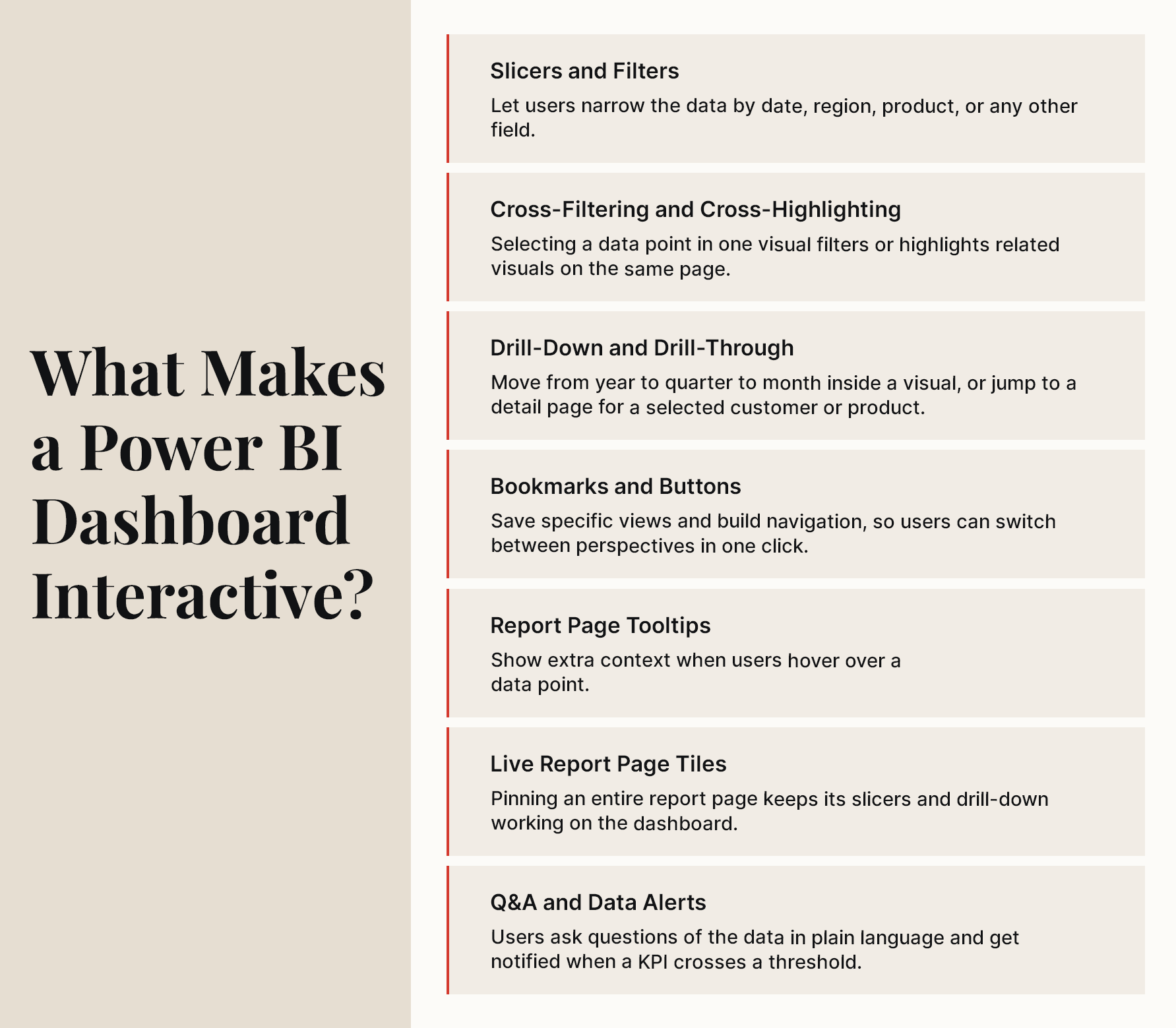
So, these were the different types of dashboards. But what makes these dashboards interactive? Interactivity in Power BI comes mostly from the report behind the dashboard. Users filter with slicers, click one visual to cross-filter the others, drill down through hierarchies, and drill through to detail pages. On the dashboard itself, tiles open their source reports, Q&A answers plain-language questions, and data alerts flag threshold breaches.
What Do You Need Before You Build a Power BI Dashboard?
You need Power BI Desktop (free, Windows only), a work or school account to sign in to the Power BI service, and the right license. A free license lets you build dashboards in your own My Workspace; creating dashboards in shared workspaces and sharing them requires Power BI Pro or Premium Per User (PPU).
- Power BI Desktop: Runs on Windows 10 or later and Windows Server 2016 or later; there is no native macOS version.
- A Work or School Account: Used to sign in to the Power BI service and publish reports.
- The Right License: To share, you and your recipients need Pro or PPU, unless the content is in a Premium capacity or a Fabric F64 or larger capacity, where viewers with a free license can access it.
- Data Access: Credentials for each source and, for on-premises sources, an on-premises data gateway to schedule refreshes.
- A Defined Purpose: Who will use the dashboard, which decisions it supports, and which KPIs answer those decisions.
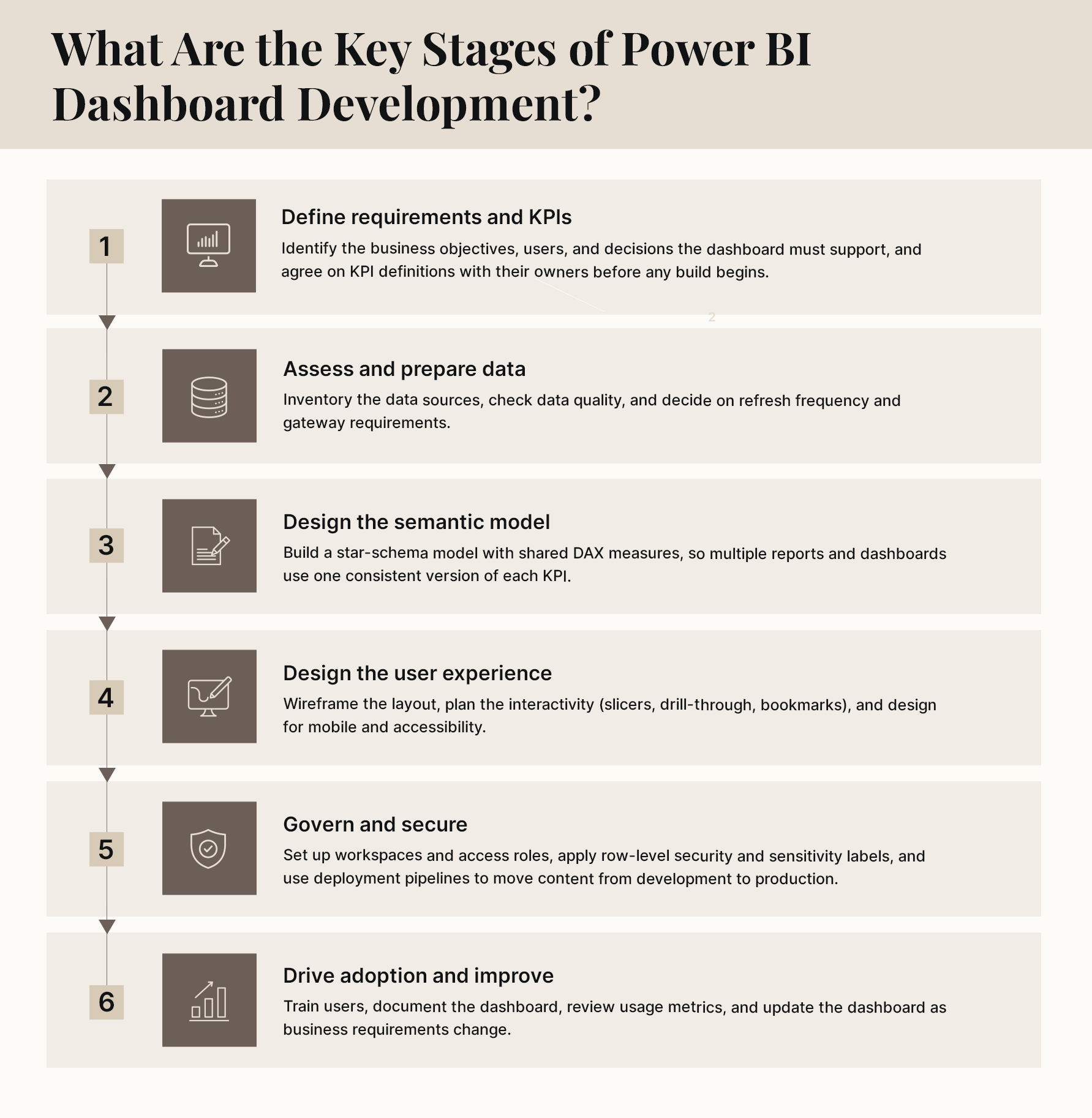
Power BI dashboard development involves more than adding charts and visuals. A successful development process moves through six stages: defining requirements, preparing data, designing the semantic model, designing the user experience, governing and securing the solution, and improving it based on how people it.
Creating an interactive Power BI dashboard takes 10 steps across two tools. In Power BI Desktop, you install the app, connect to data, clean and model it, and build an interactive report. In the Power BI service, you publish the report, pin visuals to a dashboard, customize tiles and alerts, share it securely, and keep it current.
Step 1: Install Power BI Desktop
Install the free Power BI Desktop app on a Windows machine. This is where you build the report that your dashboard will draw from.
- Microsoft Store (recommended): Install Power BI Desktop from the Microsoft Store. It updates automatically and doesn’t require admin rights.
- Direct Download: Alternatively, download the installer from the official Power BI website, which suits organizations that manage updates centrally.
- Install: Follow the installation steps to set up Power BI Desktop on your system successfully.
Step 2: Connect to Data Sources
Bring in only the tables your KPIs depend on, from the sources your team trusts.
- Launch Power BI Desktop: After installation, open the application.
- Get Data: Select the “Get data” option from the Home ribbon. Power BI supports a range of data sources, including SQL Server, Excel, Azure, and more.
- Select Data Source: Choose the appropriate data source. For example, if you’re working with Excel, click on “Excel,” browse for the file, and open it.
- Choose a Connection Mode: Import copies data into the model for fast performance. DirectQuery queries the source live, which suits very large or frequently changing data.
- Load Data: Select the tables or sheets you want to import, then click “Load.”
Step 3: Transform and Clean Data
Clean data once in Power Query so every visual downstream uses the same rules.
- Power Query Editor: Click “Transform data” to open the Power Query Editor.
- Clean Data: Use the available tools to clean and transform the dataset. This may include filtering rows, splitting columns, removing duplicates, setting data types, and renaming columns in business-friendly terms.
- Apply Changes: Once the data is prepared, click “Close & Apply” to save your changes and load the data into Power BI.
Step 4: Model the Data and Create Measures
A sound data model is what makes a dashboard fast, accurate, and consistent, so define relationships and KPI calculations before you design visuals.
- Create Relationships: Open Model view and connect related tables, such as sales to products and customers.
- Use a Star Schema: Keep transactions in fact tables and descriptive attributes in dimension tables (date, product, customer, region). Microsoft recommends this design for Power BI models.
- Add a Date Table: Create a dedicated date table and mark it as the date table so time comparisons work correctly.
- Write DAX Measures: Define KPIs such as Total Sales, Gross Margin %, and Year-over-Year Growth as explicit measures, so every visual calculates them the same way.
- Hide Technical Fields: Hide keys and helper columns, so report users see only meaningful fields.
Step 5: Build an Interactive Report
Design the report pages that will feed your dashboard, and build the interactivity in here.
- Report View: Navigate to the Report View to build visualizations.
- Select Fields: Open the Fields pane and choose the data fields and measures you want to use.
- Choose Visualization Type: In the Visualizations pane, select the type of chart or graph to create (e.g., bar chart, line chart, card, KPI, map).
- Drag & Drop: Drag fields from the Fields pane into the visualization to populate it with data.
- Customize Visuals: Use the Format pane to personalize visualizations by adjusting colors, labels, and other settings.
- Arrange the layout: add charts, tables, and cards, then drag and resize them on the canvas so the most important KPIs sit top-left.
- Use Filters & Slicers: Add slicers for interactive data filtering by dragging a field onto the canvas and selecting “Slicer” in the Visualizations pane.
- Set visual interactions: select a visual, then use Format > Edit interactions to control whether it filters, highlights, or ignores other visuals.
- Add drill-through and bookmarks: create detail pages users can drill through to, and bookmarks with buttons for guided navigation.
- Add Text Boxes & Shapes: Enhance your report with text boxes for annotations and shapes for design elements or titles.
- Use Copilot (optional): if Copilot is enabled for your workspace, prompt it to draft a report page, then review and refine the visuals and measures it selects.
Stay on Top of Your Metrics with Real-Time Power BI Dashboards
Step 6: Publish to Power BI Service
- Save Your Work: Regularly save the Power BI Desktop file (.pbix) to avoid losing progress.
- Sign In: Click “Sign In” in the top-right corner of Power BI Desktop and enter your work or school credentials.
- Publish: Select “Publish” from the Home ribbon and choose the desired workspace in Power BI Service. Publishing to a shared workspace requires a Pro or PPU license; free users can publish to My Workspace.
Step 7: Pin Visuals to a Dashboard
- Access Power BI Service: Open a web browser and go to Power BI Service.
- Navigate to Workspace: Go to the workspace where the report was published.
- Open Report: Click on the published report to view it.
- Pin Visuals: Hover over a visual and select the pin icon to add it to a dashboard. Repeat this step for every visual you want to include.
- Pin a live page (optional): to keep slicers and drill-down working on the dashboard, pin the entire report page as a live tile.
- Create a New Dashboard: If creating a new dashboard, assign it a name when prompted.
Step 8: Customize Tiles and Set Data Alerts
Arrange Tiles: Drag and resize tiles so the headline KPIs are largest and placed first.
- Add Tiles: Select Edit > Add a tile to include images, text boxes, videos, web content, or streaming data.
- Edit tile Details: Rename tiles and subtitles in business language and set custom links where needed.
- Set Data Alerts: On card, KPI, or gauge tiles pinned from report visuals, select the ellipsis (…) > Manage alerts and define a threshold. Alerts work on numeric data and trigger after a data refresh.
- Create a Mobile Layout: Select Edit > Mobile layout to arrange tiles for phone viewing.
Step 9: Share the Dashboard Securely
Share Dashboard: Click the “Share” button at the top of the dashboard.
- Invite Users: Enter the email addresses of colleagues, distribution lists, or security groups, decide whether recipients can reshare, and optionally send an email notification.
- Check licenses: recipients need Pro or PPU unless the dashboard is in a Premium or Fabric F64+ capacity.
- Secure the data: recipients can see the entire underlying semantic model unless row-level security (RLS) restricts what each user sees.
- Distribute at scale: package dashboards and reports into a Power BI app, or share them in Microsoft Teams channels and chats.
- Avoid Publish to web for business data: it makes a report viewable by anyone on the internet with the link, so use secure, sign-in-based embedding for portals and apps instead.
Step 10: Monitor, Refresh, and Improve
- Monitor Usage: Open the dashboard’s usage metrics report in Power BI Service to see how many people view it and how often.
- Refresh Data: Schedule automatic data refreshes to ensure the dashboard displays up-to-date information. Go to semantic model settings in Power BI Service to configure the refresh schedule.
Make Updates: Collect feedback from users and make improvements by updating the Power BI Desktop file and republishing the report. Changes will automatically reflect on the dashboard.
What Are the Best Practices for Building a Power BI Interactive Dashboard?
| Keep It Simple | Avoid overloading your dashboard with excessive visuals or complicated elements. Focus on core metrics and insights that align with your goals. Simplicity makes the dashboard clearer and easier to use. |
| Design for Your Audience | Consider stakeholders who will use the dashboard. Understand their preferences and needs. Customize visualizations and interactivity to offer a relevant and user-friendly experience. |
| Lead with the Most Important KPI | Place headline metrics in the top-left, where people look first, and use card or KPI tiles for single numbers that need to be read. |
| Use Color with Purpose | Keep colors and number formats consistent across tiles, and reserve strong colors for meaning, such as highlighting a KPI that is off target. |
| Design for Mobile | Create a mobile layout for the dashboard so executives can check KPIs on their phones without zooming or scrolling sideways. |
| Optimize Performance | Use Performance Analyzer in Power BI Desktop to find slow visuals, remove unused columns, and limit the number of visuals per report page. |
| Secure the Data | Apply row-level security so each user sees only the data they are entitled to, and apply sensitivity labels to confidential content. |
| Name Things for Business Users | Use plain business terms for measures, fields, and tile titles, and add alt text to visuals for accessibility. |
| Test and Improve | Regularly perform usability tests and comparisons with end users. Identify any weak points or challenges. Adapt your design based on feedback and evolving business demands. |
| Provide Training and Documentation | Create easy-to-follow guides or tutorials. Help users understand how to navigate, interact, and make decisions using the Power BI interactive dashboard. Clear instructions drive better adoption and efficiency. |
How Can Damco Help You Build Power BI Dashboards?
Building a Power BI dashboard is straightforward. Building one that leaders trust and open every week is harder. It depends on agreed KPI definitions, a sound semantic model, governed sharing, and steady improvement after launch.
Damco works as a strategic partner across that full lifecycle. Our Power BI implementation services cover requirement workshops and KPI design, data integration and modeling, interactive report and dashboard design, security and governance, and adoption support. Our data visualization consulting services help teams turn complex data into interactive dashboards built around the decisions they need to make. Whether you are building your first Microsoft Power BI dashboard or consolidating dozens of reports into a governed analytics layer, we help you move from data to decisions faster.
Frequently Asked Questions
No. Dashboards are a feature of the Power BI service. You build reports in Power BI Desktop, publish them to the Power BI service, and then pin visuals from those reports to a dashboard. Dashboards can be viewed and shared on mobile devices but not created there.
You can create dashboards in your own My Workspace with a free license. Creating dashboards in shared workspaces and sharing them requires Power BI Pro or Premium Per User (PPU), and recipients also need Pro or PPU unless the content is in a Premium capacity or a Fabric F64 or larger capacity.
To create a Power BI dashboard using Excel, start by importing your Excel file into Power BI Desktop. Next, clean and model the data, build visualizations, publish the report to the Power BI service, and pin key charts to a dashboard. You can also pin ranges from an Excel workbook directly to a dashboard. The process turns static spreadsheets into dynamic, insight-rich dashboards that are easy to share and update.
Copilot in Power BI can draft report pages from a plain-language prompt, summarize report pages, and suggest DAX queries. You still pin visuals to a dashboard yourself, and Copilot requires a workspace on a paid Fabric or Premium capacity with Copilot enabled. Review its output against your KPI definitions before sharing.
Dashboard tiles update whenever the underlying data refreshes. For near-real-time monitoring, you can use DirectQuery models that query the source live or add streaming data tiles to the dashboard. For high-volume event data, Microsoft Fabric’s Real-Time Intelligence capabilities are designed for that workload.
It depends on data readiness and scope. A dashboard on one clean data source can take a few days, while an enterprise dashboard with multiple sources, a shared semantic model, row-level security, and user testing typically takes several weeks. Clear KPI definitions up front shorten the timeline more than any other factor.

